

Add students
Add students offers three ways. The page tells you how many seats the classroom has left. You cannot add more students than seats; ask myedubuddy for more seats.
One student. Under Add a student, type the full name, email and mobile (optional), then select Add student.
- If the email has no account yet, a new account is created and its temporary password is shown once. Note it or download it, and pass it on.
- If the email already has a student account, that student is added to the batch and keeps their own password. If they signed up on their own and were waiting for verification, adding them verifies them: every paper opens.
Students who are already registered. Under Add students who are already registered:
- Step 1: From your classroom's other batches: search by name and select Add to list next to each student.
- Step 2: Anyone else registered on myedubuddy: type the student's exact email or mobile number and select Find. Partial addresses do not find anyone, and the email and mobile are shown partly hidden. Select Add to list if it is the right student.
- Step 3: The picked students collect under To add, with the seats they need. Select Add students to the batch.
They keep their own accounts and passwords, and each one gets a notification that you added them. To protect students' privacy, you can look up at most 30 emails or mobile numbers in 10 minutes.
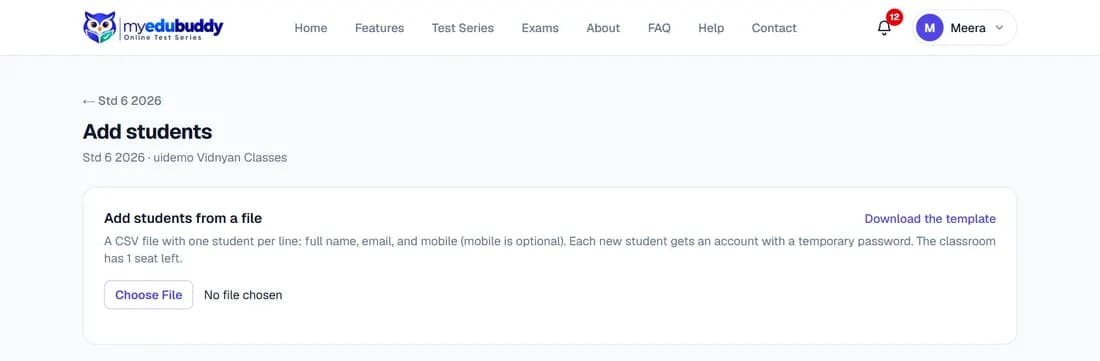
Many students from a file.
- Step 1: Under Add students from a file, select Download the template.
- Step 2: Fill one student per line: full name, email, and mobile (optional). Save the file as CSV.
- Step 3: Choose the file. The page checks every line and shows what will happen: new accounts, students who already have an account, and lines with mistakes.
- Step 4: Correct any mistakes in the file and choose it again.
- Step 5: Confirm. The page then lists each new student's temporary password.
- Step 6: Download the login list now. The temporary passwords cannot be shown again after you close the list.
In the Android app: open the batch and select Add students. Add a student and Find registered work as on the website; a new student's login can be sent with Share the login. Files of many students are uploaded on the website.
Still stuck? Write to us or read the FAQ. This page follows the User Guide of 22 October 2026.